Showing posts with label chartplotter. Show all posts

Tuesday, 3 January 2023

One man’s datum is another man’s ship wreck

 Dramatic perhaps but the truth is if you are unfamiliar with or don’t have an understanding of chart datum the outcome could be an unhappy one. 

Looks like the chart datum was wrong for plotting satellite positions on.

While not a paper style chart this satellite photo chart is referenced to WGS 84 datum, the paper style chart can be seen poking out from under the satellite photo chart at the top..  


When cruising in new areas we have been given coordinates for anchorages and or hazards and when we arrive the reported depth of the anchorage is way out or the bottom is a rock or coral reef,  or the coordinates actually put us out on the point not in the bay. Yes there can be a multitude of reasons for the discrepancy however we did wonder if the positions were taken from charts produced with different datum. After several times trying to find a safe place to anchor in the dark with these coordinates from various sources, including guide books. We now always take time and plot the coordinates on google earth to check the waypoint is actually close to somewhere that looks usable. As a side note we have found its too late to do the check once you arrive due to lack of phone/internet coverage in some areas. 


I have used this screen shot to display the anchorage waypoints (referenced to WGS 84) displayed on a chart that is not referenced to WGS 84

We met up with a cruiser who had passed us a couple of anchorages that were nothing like he reported position depth and bottom. He was shocked to hear we had problems with the anchorages. We were now anchored about 40 metres apart and exchanged coordinates of our positions in the bay now. The expected out-come should have been thirty or forty metres apart as we were anchored behind one another, but the reality was that it was a substantial miss tie. So began the search for the discrepancy and as it turned out he didn't have a chartplotter and was using older paper charts and had his GPS receiver on the same datum as his charts. When he read off positions to pass on to others they should not have been plotted on a chartplotter or newer charts. He forgot to pass along the info that he was using an older datum not WGS84. We even know of others that use paper charts with a datum of unknown origin and use an external GPS to guess-ti-mate where they are on the chart. 

Look at the same anchorage waypoints on a satellite photo chart referenced to WGS 84, now there are some with no protection and are very exposed and one is high and dry.

Chart Datum

Datum; confusing it can be, and the source of the confusion starts with the type of datum. A datum is defined as any numerical or geometrical quantity or set of such quantities which serves as a reference point for other measurements. 

In cartography and marine navigation charts two types of datum must be considered: a horizontal datum and a vertical datum. The horizontal datum forms the basis for computations of horizontal position, in simple terms “where your at on the chart” lat and long. The vertical datum provides the reference for measuring heights and depths.  Again simply put, a standard base measurement so we know how deep the water is at high tide or how much clearance there will be going under that bridge. 

Horizontal Datum

Geodetic Datum is used in geodesy, navigation, surveying, cartography and satellite navigation systems to translate positions indicated on charts (paper or digital) to their real position on Earth.

Positioning systems, I will narrow that down to satellite positioning system datum (geodetic datum) and the chart on which that position is being displayed, need to match. If they don’t match, a hazard that you believe has been given sufficient clearance could well be about to take a chunk out of your keel. Similarly, the harbour entrance you believe you are approaching in a thick fog may actually be the break water wall not where you really want your vessel to be pointed.  

Knowing and understanding about the geodetic datum your GPS is using to calculate positions and the geodetic datum your chart has been modelled on can be the difference between a happy day out or one that may just end in tears. 

The latitude and longitude of places on a chart whether electronic or paper, depend on what mathematical model is used to represent the Earth. The challenge is that the Earth is an ellipsoidal, 3-dimensional surface, while the chart or map is a flat, 2-dimensional surface. 

A three dimensional surface, I always remember when I was in school the teacher would hold up the globe and pronounce to the class with the utmost authority the world was a perfectly round sphere just like a ball. 

Exaggerated shape perhaps, however not a perfectly round smooth ball. I hope the drawing gives an idea how the real shape of the earth comes about. 

Well our old teacher may have been partly correct, it may be like a ball but not the perfectly round sphere she was trying to make us believe it was. The real earth shape as it turns out it is more like a soccer ball that the big kids had been kicking around the school yard every recess time since forever. Yep flat spots, bulges and its starting to get flat spots on the top and bottom so it’s now more elliptical.     

All charts, whether paper or electronic, are represented as a mathematical model of the Earth. However, and as we know the shape of the Earth is not a perfect round and smooth sphere, so a mathematical model optimised for one country or continent may not suit another. For example the geodetic datum used for mapping the south pacific or Australia will certainly be different to the model used when mapping the Himalayas with all those hills and mountains. 

While the heights above the WGS 84 Ellipsoid are exaggerated I hope to just give an idea of how the datum may look in the real world.

Different mathematical model shapes are/were therefore used for mapping different areas of the earth. Within this variation, geodetic datum used for mapping individual countries usually will evolve over time due to new techniques and equipment. There will be differences between old and new charts if a new geodetic datum has been used during the production of the chart. Beware of charts produced with different datum’s in areas where they overlap. You will not be able to transfer a position to the next chart unless the position is converted to match the new chart datum. 

Once satellite positioning systems evolved a geodetic datum was needed to encompass the whole world, not just small sections. The model had to make the satellite received positions be within a few metres on the real world soccer ball.

The latest geodetic datum WGS84, is a mathematical model of the Earth intended as a compromise that idealistically represents the world for hands-on satellite navigation purposes. Yes there were earlier versions, WGS 66 WGS 72 and now WGS 84. You should find all of the latest commercial marine electronic charts are produced to use WGS 84. Like any chart whether paper or electronic they are not always totally accurate in every location.  Even with electronic charts you are still required to do  secondary checks to confirm your position on the chart, not many people do but its a worthwhile exercise. Especially when moving into a new area.   

In red the smooth calculated Ellipsoid that is used to smooth out the earths real shape. 

In Australia all ENC (Electronic Navigation Charts) and paper nautical charts published by the AHS (Australian Hydrographic Service) are compiled on WGS84 (World Geodetic Spheroid 1984) in accordance with international specifications. www.hydro.gov.au

Fairly standard Australian chart text box stating what Datum the chart maker has used.

However, not all other nation’s paper charts have been modernised to this international standard. Unfortunately, some of the older local datum (of various vintages) may have carried over from the original paper charts then into the apparently modern electronic ones when they were digitised. The differences can occasionally be as much as several hundred metres. If in doubt, always check your position by range and bearings to charted features. 
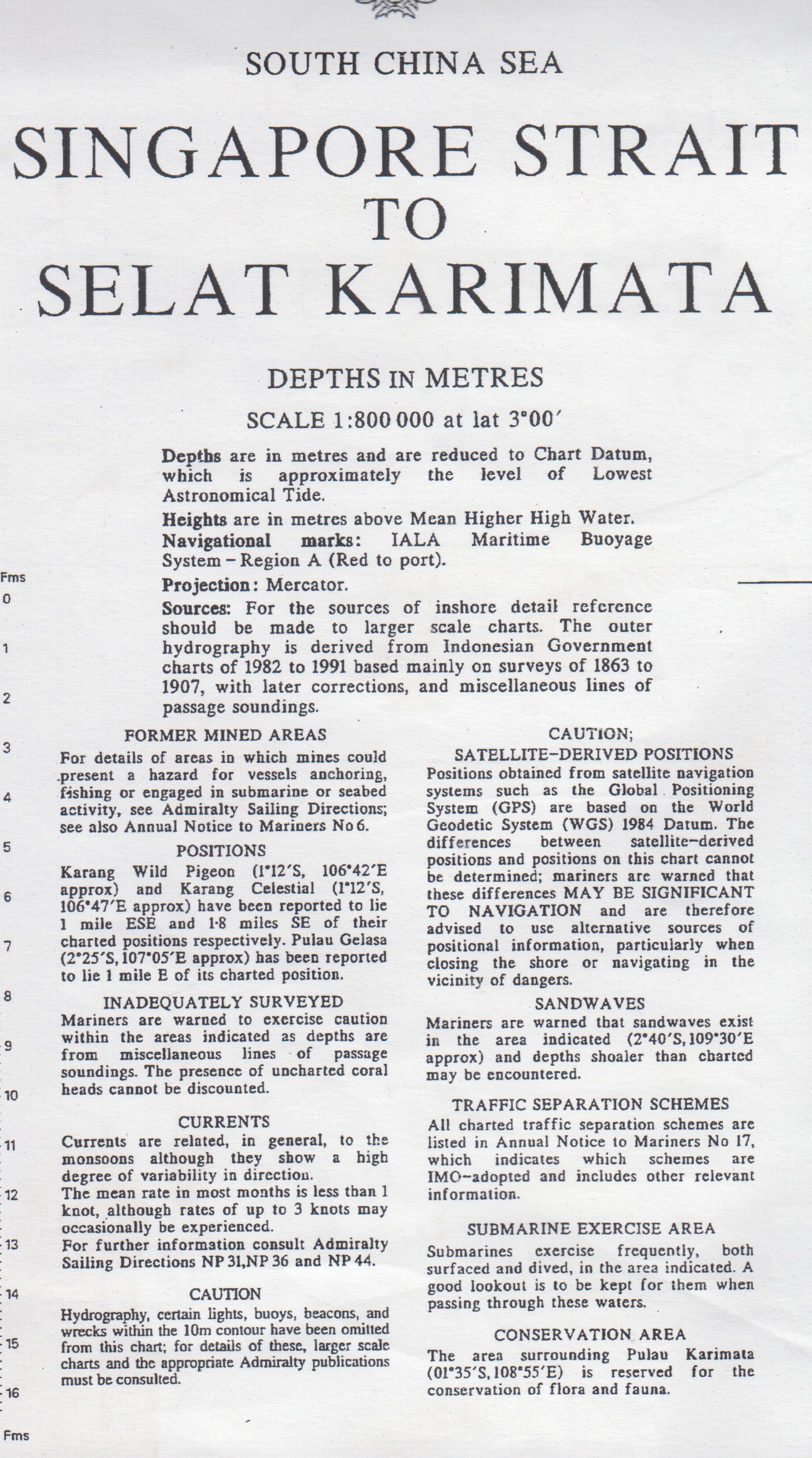
While its listed satellite positions cannot be plotted on this chart, we felt reference for chart Datum was ambiguous, it mentions surveys, but there is no mention of the Datum used in the surveys.   The Position warning here in the text box stating the Karang's (Bahasa for Reefs) being reported out of place turned up on a commercial electronic chart in the positions listed and didn't have a warning attached in the chart layers to explain the possible mis placed reefs.  

The electronic chart with the out of place reefs as noted in the paper chart text box. No such warnings listed on the electronic chart and these are plotted in the same position as the paper chart that cannot be referenced to WGS 84. So I would have a guess and say the electronic chart info was taken directly from the old paper chart that had no detail of datum listed. 

Your satellite positioning system should be set to give positions referenced to WGS84 when using any official electronic or paper nautical chart that have the Satellite Derived Positions reference box stating that WGS84 positions can be plotted directly on this chart.   WGS84 is typically the default datum used in most satellite positioning receivers. However in Australia if you are using older charts and the geodetic datum of the charts is AGD66 then you can select this geodetic datum in your GPS receiver and plot positions on the chart. However you need to confirm your GPS receiver is really changing the geodetic datum correctly. Tie up at a known point on the chart and or do several range and bearing sights (with RADAR works) to known chart objects. Keep in mind older charts can contain charted features that may no longer exist or have been rebuilt in another location.  

Satellite receiver’s datum settings

CHECK YOUR SATELLITE RECEIVER GEODETIC DATUM SETTINGS CAREFULLY – as I have written earlier all latitudes and longitudes which you use for navigation must relate to the same datum. It is worthwhile to check your GPS receiver before the start of a passage or a day out. Make sure the selected geodetic datum match the charts you’re using, as I said previously the manufactures of ENC’s use WGS84 as a standard, and paper charts are as marked.  If your using a tablet or smart phone for navigation, there is no way I know of to check the datum used, WGS84 should be the default if there isn't others to select from.  

Example settings screen showing that WGS 84 has been selected as Map Datum, not all receivers have this feature of additional datum to select. 

While this may sound crazy I’ve had a GPS receiver that had a fault and in several instances did change the geodetic datum all on its own somewhere during a passage.  I sent the receiver back to the manufactures a couple of times. Then after the fourth of fifth time rather than risk having a faulty receiver I put it in the bin.  At the time I was lucky to be operating in an area with a lot of beacons.  With a change of datum I found the beacons were a lot closer or further away than I would expect to find them and the first time it took me a while to work out why all the beacons were now in the middle of the channel. It’s a good thing I wasn’t trying to pass through an unmarked murky reef area.  

Importantly if your vessel has been tied up for a couple of weeks, has suffered a power failure or has undergone the installation of new equipment. You will certainly need to check over the settings on your chartplotter/GPS receiver. While it doesn’t happen all the time, simply installing new equipment can change the setting of other connected equipment, especially in this day and age of smart systems designed to be helpful. 

I have noticed one thing a lot of people get confused with, is the measurement on the GPS receiver display of elevation. You might notice the boat GPS receiver elevation display is -10 meters at the dock, at “sea level”.  The -10 meters is a perfectly accurate ellipsoidal height and as you know the dock isn’t 10 meters under water (or you would have bigger issues than interpreting an elevation measurement). So, although your GPS receiver’s ellipsoidal reading is accurate, it doesn’t seem to make sense unless you understand what it is.  The reason for the measurement is that the real earth surface is not a perfect smooth ellipsoid and as mentioned earlier, it does have a lot of flat spots. It also has mountains, craters, and other features above or below that mathematically perfect smooth ellipsoidal that is the reference E.g. WGS84.  The measurement you are seeing is more than likely because the patch of ocean your boat is floating in is on one of those flat spots as mentioned earlier.  Keep in mind that this measurement is not used for tidal height even though it is a vertical measurement from the ellipsoid datum. 


Vertical Datum AKA Tidal Datum

Tidal Datum is the water level that depths displayed on a nautical chart are measured from. Chart tidal datum is a vertical datum and not easy to confuse with the horizontal datum for the chart e.g. WGS84.  A chart vertical datum is generally derived from some phase of the tide.  

The most common chart tidal datum is LAT (lowest astronomical tide). Lowest Astronomical Tide, LAT for short is defined as the lowest tide level which can be predicted to occur under average meteorological conditions and under any combination of astronomical conditions. Many national charting agencies, including the Australian Hydrographic Service, use LAT to define chart datum.

Information box on paper chart, Chart Datum for horizontal WGS 84 and vertical reference LAT are defined. 

Chart information box, the satellite position WGS datum for applying corrections is not completely defined, its a real possibility of it being WGS 72. The good thing is the chart datum is listed as AGD 66.  The Datum for tide depths are referenced to Indian spring low water. Cross referencing to the newer format of LAT may not be straight forward.  
 
 Keep in mind this datum is continually changing as more precise methods of measurement are used, and the amount of data is analysed. 

One advantage of using LAT for chart datum is that all predicted tidal heights must then be positive (or zero) avoiding possible ambiguity and the need to explicitly state sign. Calculation of the LAT only allows for gravitational effects so in practice lower tides may occur due to other factors (e.g. meteorological effects such as high pressure systems). Charts show sounding in several ways, numbers denote individual soundings. These are supplemented by depth contours, lines connecting points of equal depth. These lines are used to present a picture of the bottom.


A tidal prediction harmonic, as can be seen here the lowest tide of the day is still a positive number above tide datum.  A numeric tide table in the top right corner make it easier to get the times correct. 

Charts and tables

Charted depths and drying heights on nautical charts are given relative to chart datum. Some height values on charts, such as vertical clearances under bridges or overhead wires, may be referenced to a different vertical datum, such as mean high water springs or highest astronomical tide (HAT) (for "HAT" see tidal range).

Most charts define the reference of the height of the vertical clearances under bridges or overhead wires in the info box list . Its good to see the clearance listed on the bridge as well. 

Tide tables give the height of the tide above a chart datum making it feasible to calculate the depth of water at a given point and at a given time by adding the charted depth to the height of the tide. One may calculate whether an area that dries is under water by subtracting the drying height from the [given] height calculated from the tide table.

Tide table example

Copy of Ashmore Reef, Australia
Units are meters

Tuesday 2023-01-03   
Sunrise  7:58 AM EAST, Sunset  7:45 PM EAST
Moonset  4:41 AM EAST, Moonrise  4:45 PM EAST
   Low Tide:   4:19 AM EAST   1.2
  High Tide:  10:24 AM EAST   2.4
   Low Tide:   3:43 PM EAST   1.6
  High Tide:  10:16 PM EAST   3.2

Wednesday 2023-01-04   
Sunrise  7:59 AM EAST, Sunset  7:45 PM EAST
Moonset  5:31 AM EAST, Moonrise  5:33 PM EAST
   Low Tide:   5:18 AM EAST   1.0
  High Tide:  11:30 AM EAST   2.5
   Low Tide:   4:47 PM EAST   1.6
  High Tide:  11:09 PM EAST   3.4

What has been known to happen when you get it wrong.  


A simple diagram showing tidal datum (black line) measurements of tide are referenced from the Datum.


Other defining terms.

Mean Sea Level (MSL) Long term average of the level of the sea, this is continually changing or evolving as more data is collected.

Mean Low Water Springs (MLWS) Long term average of the heights of low water at full and new moon.

Mean Low Water Neaps (MLWN) Long term average of the heights of low water at the first and third quarters of the moon. 

Mean High Water Springs (MHWS) Long term average of the heights of high water at full and new moon.

Mean Low Water Springs (MHWN) Long term average of the heights of low water at the first and third quarters of the moon.

Highest Astronomical Tide, HAT, Calculation of the HAT only allows for gravitational effects so higher or lower tides may occur due to other factors e.g. meteorological effects such as high or low pressure systems or storm cells. It is used, among other things as a datum from which to measure navigational clearance, or air draft, under bridges, power lines. 


Using charts and tables not based on the same geodetic datum can result in incorrect calculation of water depths.

So there can be errors creeping into chart vertical datum, if the conversion from one datum to another is not carefully controlled, the soundings can be changed. The same can be said for changes from metric to imperial or vice versa. 


Thursday, 13 December 2018

Navigation Instrument WiFi connectivity on a Cruisers budget

Setting up WiFi connectivity on a Cruisers budget


Scouting made easier using a mobile WiFi unit to send depth and positioning data to a tablet to make/update navigation charts. I put together a portable WiFi enabled GPS/Sonar to transfer depth and position data to make a sonar chart on the fly. Personal HD depth contour charts develop in real time as your boat (or tender) moves through the water. 

On board I also connect a WiFi unit with built in multiplexer to send the AIS and Instruments data to  our navigation laptop running OpenCPN.

Scouting made easier.

Scouting new anchorages has always been a bit of a hit and miss affair. Turning up at a remote part of the planet and wanting to stop for the night would often find us anchoring in places that sometimes didn’t offer the protection we could have had if we were able to move closer to shore. These anchorages off the beaten track often lack detail on the charts we have.  Exploring new areas late in the afternoon made us uncomfortable due to the angle of sun not allowing us to see into the water easily. Getting our keel caught up with a falling tide has the potential to be disastrous.

Opppps caught on a receding tide, deep water was just to port


Potential anchorage but the chart is lacking detail

A Google Earth chart overlay can help show some detail but lacks depth information

We have tried several different methods to help quickly scout out areas we were interested in moving through. The first was a forward facing sonar, while the idea was good it turned out to be an expensive exercise. The draw back was the unit was very hands on and when we wanted the unit to be working at its best while manoeuvring in tight quarters, we couldn’t easily keep up with the setting changes to keep the obstacles on the display. Then as we were coming to grips with the operation and a couple of niggling problems, the company was sold and the new owners didn’t want to offer much support for the model we had.  So we shelved the forward facing sonar and at the next haul out we removed the transducer and unit.
Rather large forward facing sonar transducer ready to go

Talking with others the overall consensus was to get out in the tender and have a look around. Scouting in the tender did have advantages but doing the sounding with a lead line was very time consuming and had the potential to miss a bommie or sharp pinnacle. We were searching for a reliable alternative and being full time cruisers a cheap solution would be nice.

A viable alternative was to install an active depth transducer in the tender. I thought the active transducers were a good idea, apply power and they would output a NMEA0183 depth string. We already had a Garmin GPS 72H.  This unit will take a NMEA0183 input and the depth could be displayed on the screen. We could later follow the track made while we were in the tender to bring Matilda in to the anchorage. The only minor drawback to this plan was if we were scouting in the shallower places we would need to make a good run in the deep passage to make a usable track. As it turned out the active depth transducers we could find were just too expensive. So we looked at simple hand held depth reading units but they were lacking any real positioning, so there was room for error if we didn’t get it right when back on board Matilda.

We had all but shelved our plan when our local chandler was having a pre summer sale clearing out the stock of small chart plotter/fish finders. We got a Lowrance Elite 4 Chirp. The unit has a built in GPS and CHIRP transducer and due to its size it has low power draw. At the time the price was better than an active depth transducer and we have a GPS and sonar display screen in to the deal. One of the items that attracted us to this unit at the time was that we could up load (on the internet) our sonar tracks and get a chart for the area we had scouted. This sounded good but required an internet connection to upload the data and then we had to wait for the finished product. This turned out to be a frustrating exercise, but I guess it worked for the week-end fishermen who could afford to wait for the next weekend.
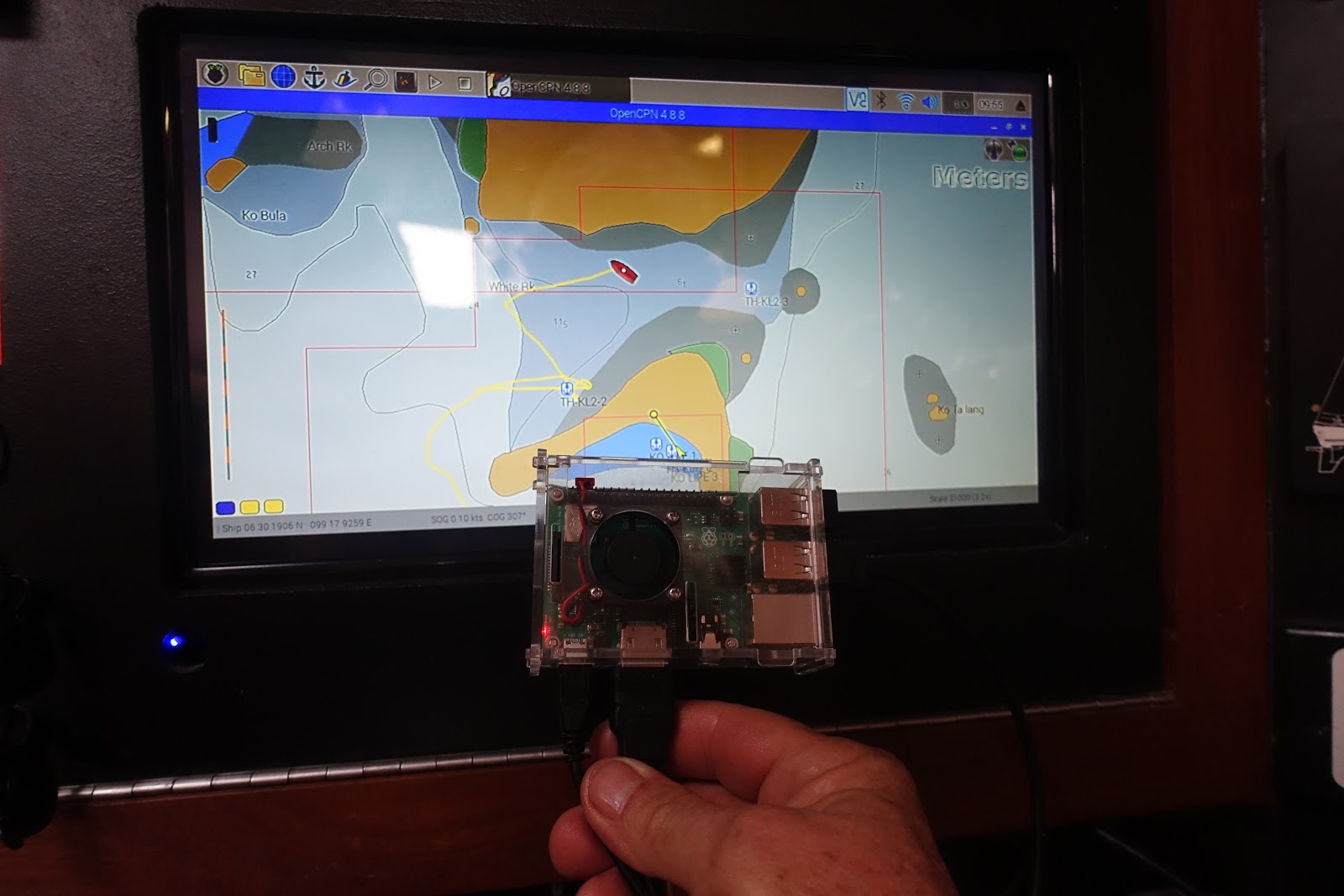
We could copy our sonar logs off the unit, this was in Lowrance sonar file format .SL2. Unfortunately there isn’t much you can do with a .SL2 file, the program that was previously available would no longer work with newer computers. Then we found a program that would read the .SL2 files https://reefmaster.com.au/index.php/products/sonar-viewer. While this was a step in the right direction it wasn’t exactly what we had in mind. It would however be great for fishing and looking at what had gone under the boat during a trip, however it didn’t give us the chart to navigate on.

While we were searching for the program to read the .SL2 files we saw that Navionics could make a sonar chart live. What a great tool, we could have a depth chart done on the fly in the field so to speak, no waiting no delay and no internet needed.  The only drawback was we needed to be able to get the depth data into our Android tablet that we have an active subscription to Navionics on.  This simple video on YouTube from Navionics gives an over view of the Live Chart concept https://www.youtube.com/watch?v=RzRd6MA7XV0

On the tablet is the same bay as previous, but now has depth information after a couple of passes in the tender

A close up of the depth information detail
Our Samsung tablet has a built in GPS so positioning data isn’t a problem, however there isn’t a serial connection to input the NMEA0183 depth data. As luck would have it during our last trip back to Australia we had purchased a small Wi-Fi network NMEA bridge (YAKKER). The original plan was to connect it to Matilda’s GPS output so we could run OpenCPN on our laptop wirelessly. This unit will allow applications to directly access NMEA0183 data over TCP/UDP connections. Now we can view vessel information from virtually anywhere on the vessel. The units will also transmit AIS information from the on-board AIS receiver. So if your tablet has a built in GPS and you would like to add AIS data then this may be an easy way to do it. However you will have to ensure the program (app) will recognise and display AIS data.
NMEA0183 to WiFi bridge 

As a side note; these units are great for those of us who went out and brought iPads/Android tablets then found the units do not have a built in satellite GPS receiver. In our case we didn’t realize we didn’t have a satellite GPS receiver in one of our tablets until we fired up the navigation programs away from the dock and found they couldn’t position us. Now you can run the navigation programs on the iPad/Android tablet that doesn’t have a satellite GPS, you can send in the positioning data on the Wi-Fi connection. You don’t even need an expensive GPS, a feed off your on board GPS or a hand held with an NMEA0183 output will work a treat.  

Short video of AIS on an iPad using the YAKKER https://www.youtube.com/watch?v=gFAsBM-X5-Y

Our Hook Up

The Wi-Fi network NMEA Bridge is tiny and doesn’t consume very much power. After some quick experimenting we found the NMEA output of our small Lowrance chartplotter could easily be connected to the Wi-Fi Bridge and the depth and positioning data could be sent to the Samsung tablet. The actual wiring was simple, two power wires and a single data wire connected to the Wi-Fi unit. The output of the small Lowrance Chart plotter/GPS is NMEA0183 (RS422) with 2 wires A (+) and B (-), so I simply connected A (yellow TX A) to the RX connection on the YAKKER, NMEA to Wi-Fi Bridge.

Our chart plotter uses the NMEA0183 RS-442,  both styles RS422 & RS232 of data transfer types are shown
Our hook up RS422 depicted in the previous drawing by the TX_A and TX_B

This type of connection is fairly common, most Garmin handheld would use this connection 

If I was using a battery (standalone) powered GPS (like a Garmin 72,72H or 73 hand helds) that was not powered from the same source as the Wi-Fi Bridge I would also connect the grounds together. It is best to power both units from the same source, whether it is an external standalone battery or the vessels battery bank.
If using a self powered unit I would connect the grounds together as shown here with a common ground

So back to scouting in the tender, I set about working out how we could set this all up in the tender so we could scout areas of interest. I had a water proof box and a motor cycle battery we had purchased for a running light on the tender at night. It didn’t take long before I had the battery in the box, and had wired in the chart plotter and had it connected to the YAKKER Wi-Fi Bridge.
Battery and YAKKER unit fitted into a water resistant box
To keep things simple I have a switch on the outside to turn off power to the YAKKER and the chartplotter. The only change I made to the operation of the chartplotter was in the NMEA0183 setting tab was to increase the output baud rate from 4800 to 38400. I then also set the transmitted NMEA sentences to only include GLL GGA RMC RMB and for depth information DPT and DBT. I found the shorter string of data was all we needed for the tablet. The reason I send the GPS info to the tablet is to reduce the power consumption of the tablet. I turned the tablet GPS off to conserve power and get better endurance from the battery.

Box sealed up and ready to go

NMEA0183 configuration screen showing sentences to be transfered

Sample of configuration screen
Setting up the Wi-Fi Bridge unit was simple. If you’re not tech savvy don’t let the jargon scare you away. The unit will boot up into access point mode, you will see it on your phone or laptop just like you see the free Wi-Fi connection at your local café. Just follow the instructions in the PDF file that is sent to you when you purchase the unit. Log on to the device named Yakker with the password 12345678. Once I was logged on, I opened a browser window and using the address 192.168.4.1 and go, I was then connected to the Wi-Fi Bridge. What I did change was the SSID (username) and password. Once you change these and hit the submit button you will have to close off your connections and reconnect with the new identity.


Other than changing the SSID and Password I found the default settings did work straight out of the box when we first got going. After a couple of test runs I found that what I believe are due to limitations of the tablet I needed to increase the baud rate of both the WiFi data and the chartplotter. The reason for the change was because the read out and boat movement on the tablet was a jumpy on the tablet screen. Once I changed the Baud rate and reduced the amount of data sent from the chartplotter the update was a lot more fluid. Keep in mind I had to change the Baud rate on both the Chartplotter and the Wi-Fi Bridge so they were matched.


------------------------------------------------------------------
If you’re interested in an Australian made product or products that won’t break the bank here is the web site: http://www.yakbitz.com

If you use EBay the units can be purchased from the online EBay shop. If you are an Ebay member you can get better deal, look here first due to the better price, the units are made by a small company in Morayfield (just north of Brisbane) and posted from Australia.
We are using this 2 port unit to send AIS and GPS data to the laptop running OpenCPN

We have since purchased a 2 Port, Wi-Fi Bridge YAKKER, we can feed the on board GPS and AIS into the unit and use the GPS positioning and AIS data for OpenCPN we run on the laptop. The 2 Port YAKKER does away with the need for a separate multiplexer to combine the two data streams. Best of all the cost for this set up was a fraction of the cost of imported unit/units.
Some other units from the range available


Saturday, 24 November 2018

Setting up our Raspberry Pi with OpenPlotter


What we did to install OpenPlotter on a Raspberry Pi to have a OpenCPN chart plotter running. 


A quick note about the Raspberry PI. Top of the list is the latest model of RPI (Raspberry Pi) and that is the Raspberry Pi 3 Model B+, there are still B models out there for sale but I spent the extra couple of dollars and purchased the newer B+ unit. No sense starting off with an older/obsolete model.

Shop around, we saw B models costing more than the later B+ version. If possible see if there is a package deal. We purchased a package and it turned out to be a good deal after adding together the cost of the individual items. About the only thing we didn’t need was the AC power adapter that came in the package.  We just put that away into a locker as we very rarely use AC power once away from the dock, and we certainly wont be using AC to run a chart plotter.

Raspberry Pi box almost the same size as the mini mouse. As you can see from the box the model B+ is well marked.

For power we use a 3 amp DC-DC USB charger that plugs into a 12 volt cigarette lighter socket. We tracked down a heavy duty USB charge cable with micro connector to run the RPI. It took a little time to track down the 3 Amp output DC-DC USB charger. As usual there are traps for the uninitiated.  Before handing over your hard earned cash make sure the output of the power unit will supply 3 Amps to a single USB socket, there are some rated as 3 Amp but only supply 1 Amp to each of 3 sockets, or for 2 socket units, 2.1 Amps to one socket and .9 Amps to the other.

After booting up and running the unit, if you happen to see a small icon in the shape of a yellow lightning bolt in the top right hand of you screen your power supply likely isn’t supplying enough power (amps). Or perhaps the cable you have isn’t sufficiently heavy enough. When purchasing a power cord look for cords aimed at being designed for tablet charging, these are marked as being good for 3 amps continuous.

The RPI 3 B+ does have built in Wi-Fi on board. However to get the most out of the installation we also purchased a Wi-Fi USB Dongle. Why you may ask? To have 2 Wi-Fi units running on the OpenPlotter RPI. On board Matilda we have a 4G Huawei mobile Wi-Fi E5577 router which connects to the internet (that is when we are in range of the cell phone towers). The Wi-Fi USB Dongle plugged into the OpenPlotter RPI allows it to connect to the E5577 router (as a Client) so we (OpenPlotter RPI) have an internet connection. Of course you could hotspot your phone and connect to the internet that way. The built in Wi-Fi on board the RPI is then available as an access point (AP) so other computers, tablets and smart phones can log on to the OpenPlotter RPI (as clients). If you don't want to purchase the second WiFi dongle you could USB tether your phone. The main reason to get the RPI on line first up is to update the operating system and OpenPlotter software. After the initial update the internet connection is nice so you can get GRIB files and tide data from the internet.
E5577  4G Huawei mobile Wi-Fi  router

You will need at least these items and this is what we used to run the software.

Monitor option
    1 x Raspberry Pi 3 Model B+ (Prices start at AU$60)
    1 x 16GB or larger Micro SDXC card, ours was a 128GB  (A class 10 or better  100MB per second)
    1 x 5V 3A, Power Supply Adapter, we are using a cig lighter socket 3 amp USB tablet charging unit
    1 x Heat Sink Set (3 piece pack get the better quality copper heat sinks)
    1 x Casing with Fan
    1 x 1.5 Meter HDMI Cable (or length you need, short is better)

The monitor we are using is the vessels 12V LED TV which has 2 HDMI input ports.
Logitech MK240 Nano Wireless Keyboard and Mouse Combo
Wireless adapter (150Mbps WiFi USB Dongle)

Any laptop or desktop computer for the initial prep work, I have numbered the summary to match the work list.
Most of the bits we used, Keyboard and Mouse, Raspberry Pi board, heat sinks, SD Card, HDMI cable and WiFi dongle, not in the photo is a case and the 12V 3 amp USB charger. 

Summary
1. Get the software, NOOBS (New Out Of Box Software)
2. Format the micro SD card for use in the RPI (Raspberry Pi)
3. Extract the files from the NOOBS download on to the PC
4. Load the NOOBS software on the SD card
5. Get ready for the initial boot

1. Download the latest NOOBS installer version of OpenPlotter RPI, on to your PC. It’s a compressed 1GB file so it may take a while. The file is available here:
http://www.sailoog.com/blog-categories/openplotter-rpi/


Screen shot of the OpenPlotter download page, we downloaded the NOOBS

NOOBS zip file downloaded, the directory NOOBS_v2_8_1 is where the contents has been extracted to.

2. If you have a SD card 32GB and under visit the SD Association’s website and download SD Card Formatter 4.0 for either Windows or Mac. https://www.sdcard.org/downloads/formatter_4/index.html/

Screen Shot of the SD associations SD card formatter

Or if you have a Micro SD Card over 32GB like we did with our 128GB SD card, follow the instructions at https://www.raspberrypi.org/documentation/installation/sdxc_formatting.md/

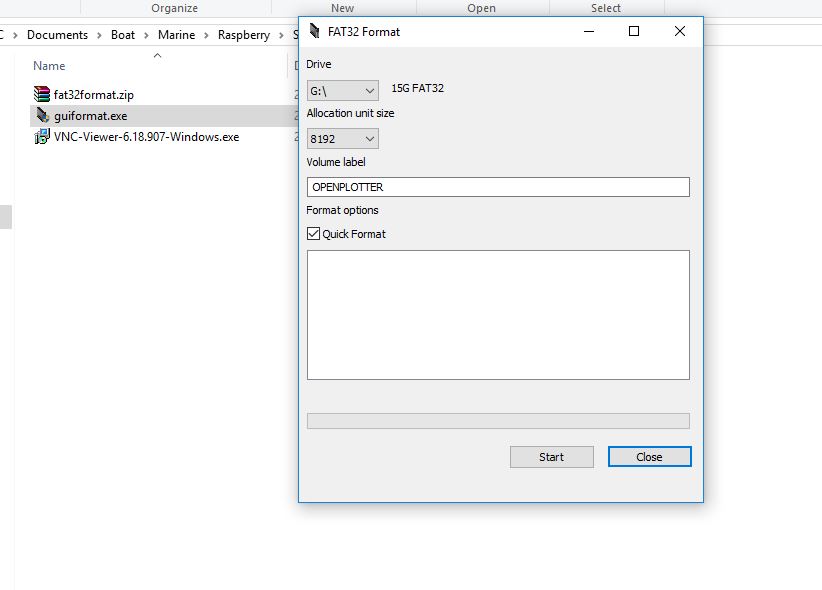
Software to format a SD card of more than 32GB running on a Windows is here. http://www.ridgecrop.demon.co.uk/index.htm?guiformat.htm/

Screen shot of the guiformat FAT32 SD card formatter from Ridgecrop


For Windows (32GB cards and under)
      i. Download the SD Formatting Tool
      ii. Install and run the Formatting Tool on your machine
      iii. Check that the SD card you inserted matches the one selected by the Tool
      iv. Click the "Format" button

For a Mac (32GB cards and under)
      i. Download the SD Association's Formatting Tool   
      ii. Install and run the Formatting Tool on your machine
      iii. Select "Overwrite Format"
      iv. Check that the SD card you inserted matches the one selected by the Tool
      v. Click the "Format" button

For Linux
      i. Its recommend to use gparted (or the command line version parted)
      ii. Format the entire disk as FAT32

Once the initial prep work is done on the SD Card and you have downloaded the NOOBS zip file.

3. Extract the files in the NOOBS zip file into a directory on your PC.

Contents of the extracted NOOBS zip file
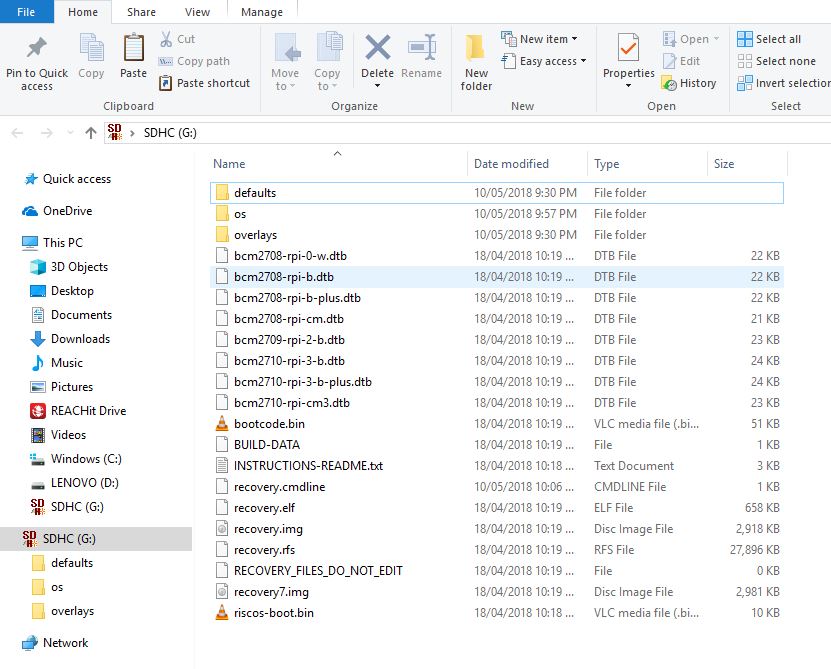
4. Copy the extracted files onto the SD card that you just formatted so that this file is in the root directory of the SD card. Please note that the files have been extracted into a folder. Open the folder and copy across the files from inside the folder into the root of the SD card rather than copy over the folder itself.


For those not accustomed to the term root directory, as an example the files would look like the screen capture. Showing the folders and files copied on to the SD card G:\

5. Fit the heat sinks as per the attached diagrams.

Heat sink placement is straight forward, peel the backing of the adhesive and apply in the place as marked above

Heat sink placement is straight forward, peel the backing of the adhesive and apply in the places as marked above

Insert the SD card into your RPI, attach the HDMI cable, and insert the Keyboard and Wi-Fi dongle into the USB ports, now connect the micro USB power supply cable and plug it into the power.

Left to right, SD card in, power cord connected, WiFi, Keyboard and Mouse dongles in the USB slots

Raspberry Pi is installed into its case ready to go


After applying power your Pi will now boot into NOOBS


First boot screen, software is being installed on the SD card.

The screen after the install OpenPlotter is all set to go

 Now is the time to set up the network, change the passwords for the system and network. Then it will be time to add the GPS data dongle or data cable.

Documentation  from the OpenPlotter web site will help guide you through the set up process. https://docs.sailoog.com/openplotter-v1-x-x/

OpenPlotter Network Configuration Page

We are running OpenPlotter on a RPI B+ so we pick RPI3+ from the drop down menu, we can also connect with a network cable so the bridge eth0 is also selected. The picture shows our setup with network dongle (Client), cable connectivity(bridge eth0) and the RPI running as an Access Point (AP). Change the password here or forever be reminded during boot up you need a new password.


Before configuration of the network, hover over the network connection arrows, only onboard WiFi active , (this could also mean the 4G Huawei mobile Wi-Fi E5577 router is not on)

Top right: Network configured the network arrows have been replaced with the WiFi symbol. Both onboard (AP) and WiFi dongle (Client) are working.

Serial connection page

Added the serial data input, we have AIS and a GPS both running at 38400 baud. The setup is easy with the system selecting the correct port and data rate, plug in a cable and press auto, once correct you will be asked to press apply to save. 


USB To RS485 USB-485 Converter Adapter


We purchased Arduino brand USB To RS485 USB-485 Converter Adapter to connect our serial data. Our data is differential NMEA0183.   Ours were purchased on Lazada as we are in Malaysia, but a quick search on Ebay (USB To RS485 USB-485 Converter Adapter) turns up lots of them starting at about $2.99 each plus postage. Warning the polarity marked on the board connectors is wrong. connect the A+ wire to B- terminal and the B- wire to A+ terminal. It only took me about 6 hours to sort this one out. I see these units are for sale all over the web and I think most of them are coming from the same supplier

OpenCPN running on the RPI as part of the OpenPlotter Package

Using the remote desktop on the phone or tablet over the WiFi access to the chartplotter/Openplotter functions is available anywhere on the vessel.
VNC server is part of the OpenPlotter package and is used to run the remote desktop. To get the OpenPlotter desk top on the remote device download the VNC app from here: https://www.realvnc.com/en/connect/download/viewer/ the app store or iTunes.

Helpful links
OpenPlotter Web Site, the list of  features are not active links, this had me confused first visit. Scroll to the bottom of the page for links to documentation, donations, support, shop. 
http://www.sailoog.com/openplotter

Documentation  from the OpenPlotter web site.
https://docs.sailoog.com/openplotter-v1-x-x/

Support web site, sign up to view diagrams and pictures.
http://forum.openmarine.net/

This concludes our install and initial startup. Follow our journey as we set up layers, add charts, instruments, GPS and  some very cool sensors.

We set up the Tide function with tcdata files that have world wide tide stations in OpenCPN here

Transferring files from your PC to OpenPlotter is very quick  and easy here is how we do it here

Setting up the layers directory so OpenCPN doesn't get bogged down with lots of routes tracks and waypoints here

Initial testing of the fresh install, GPS and AIS connected, comparison with our trusty laptop. Looking very good.