Setting the default chart scale to display new waypoints
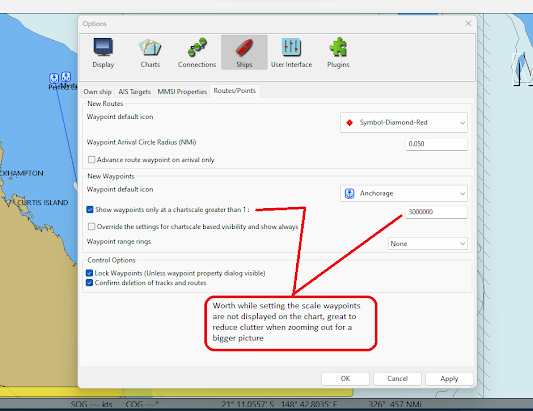
On the toolbar go to the Options/Ships/Routes/Points tab and fill in the scale you would like to see the waypoint text disappear from view on the chart. I have found different areas can benefit from having the text hidden from view at a low scale.
When I zoom out to get a better overall idea of a coast line I find that it can become hard to look at the chart with the waypoint text cluttering the screen. I select the Show waypoints only at a chart scale greater than 1: and my preference is 1: 5000000. This of course can be changed easily however it really is a personal choice. When this options is selected any new waypoint created will have this scale as the default, you will however also need to go into the extended properties of the waypoint and make sure the function is selected.
|
| I select a scale with a little trial and error, I adjust the number to suit the section of chart. I use 1:5000000 as a starting point, it really depends on the number of waypoints in the area to what scale I use. |
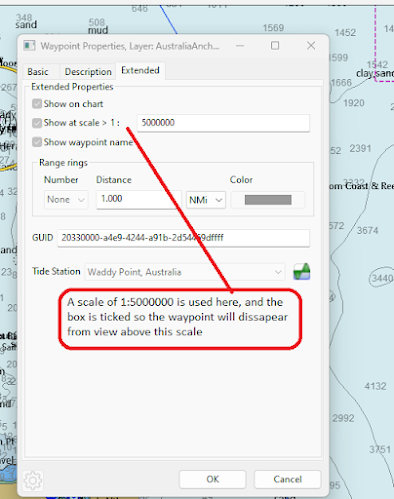 |
| A waypoint set to display at a scale greater than 1:5000000 |
Below is an example of not having any scale set, all the waypoints will be displayed at any scale the chart is set to. This can also have the side effect of slowing the computer due to the additional resources used to display this much data.
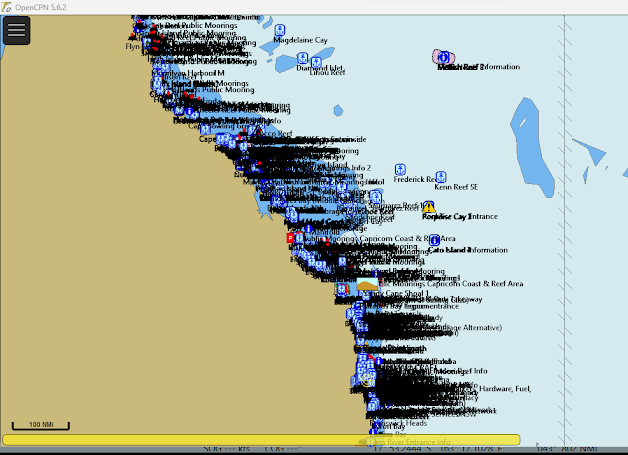 |
| A chart displayed with no scale set for the waypoint text to disappear, the chart can become cluttered as seen here and the PC can react badly due to the resources used to display this amount of data. |
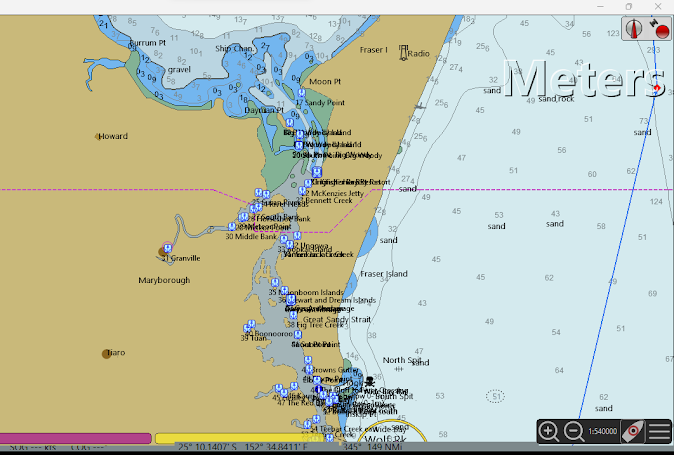 |
| Another example, these waypoints are set to disappear with a scale greater that 1:900000 while it is a little hard to see in the screenshot the scale now is 1:540000 |
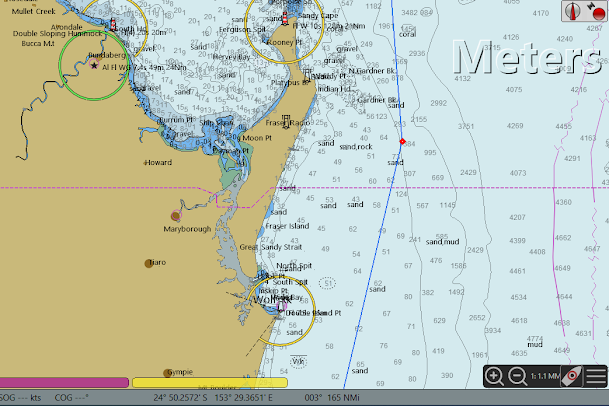 |
| The same chart with the scale now at 1:1.1MM, certain details of the chart are easier to see without the waypoint text, and the laptop doesn't work as hard. |
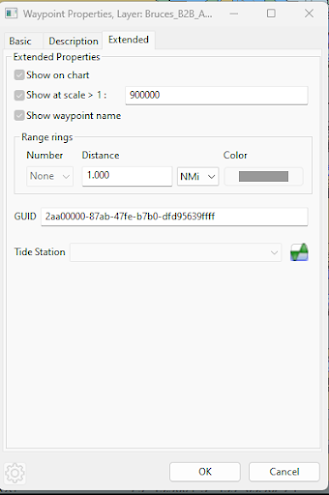 |
| The waypoint properties of one of the waypoints, showing the scale of 1:900000 |
You may also like to look at:


