
How I receive and decode AIS signals and display them in OpenCPN using a relatively cheap software defined radio. An RTL-SDR is a low-cost USB device that can be used as a computer-based radio for receiving live radio signals. Depending on the RTL-SDR it could receive frequencies from 500 kHz up to 1.75 GHz. Most of the software for the RTL-SDR is also community developed, open-source and most of the time free of charge. For this use the unit is made to collect and decode data from both AIS frequencies and forward the data to OpenCPN. The RTL-SDR with different programs can also be used for collecting weather information and faxes.
The all up cost when I set it up (2021) was just shy of sixty AU dollars. The all up cost is still way below even the stand alone open-source units. I have compared this set up along side a high end commercial unit and have been very happy with the performance. Yes the unit I am testing this setup against is thirty times more expensive, so I did expect it to be better. That said I was pleasantly surprised to find that the commercial unit only occasionally picked up some extra targets at the theoretical maximum range.
 |
| AIS Display using RTL-SDR USB dongle plugged into a laptop computer running OpenCPN. The ship displayed on the far right is over 30 Nautical Miles from our vessel. |
 |
| To give a sense of scale, as a reference for the size of the dongle I have used a SD card carrier |
** toward the end of the DIY I have included a couple of shots of the dongle connected to a Raspberry Pi
The other positive feature of using these units is that there isn't any need to wire in anything, no power supplies, fuses, switches, data wire plugs or converters to get it into the laptop or Raspberry Pi, and the additional power draw is minimal. For a totally stand alone unit the only other thing to add is a GPS USB dongle.
 |
| AIS Target page showing part of the number of targets, range and distance. Due to location 132 targets being processed is about average for a mid week day and will increase on the week end. The RTL-SDR will run and pick up the same number of targets as a commercial receiver. |
This tutorial will show you how to set up an AIS receiver using a RTL-SDR. Most parts of this tutorial is applicable to several brands of SDR Dongles, such as the RTL-SDR.COM V3. Keep in mind the best dongles to use are the newer class of dongles like the version 3’s in metal cases with very little oscillator offset. While this may be getting a bit technical the less the dongle oscillator is off frequency the better it will work to receive AIS signals. In the early dongles you had to have the SDR dongle turned on and warmed up for half an hour before it would be stable and not drift in and out of frequency. So keep in mind the more stable and closer to frequency the dongle oscillator is, the clearer signal it can receive. A unit advertised with a 0.5 or 1 PPM error by having a temperature compensated oscillator (TCXO) is the best sort of unit to purchase for this purpose. Watch out for cheap and not so cheap Chinese clones for sale on the net in plastic cases.
While I have made note about units with large offset, that's not to say the units are not usable, they can be and as long as the offset is known and allowances are made for the offset in the decoding software they can be used successfully. When I first started using the RTL-SDR I used calibration software looking for the PPM offset number to enter. This however only caused a lot of confusion and for some reason came up with wildly inaccurate numbers. For what ever reason this wasn't an isolated incident, I found out others with the newer low offset oscillator RTL-SDR units were also seeing similar results when using the software to arrive at an offset solution. The work around was to enter 0 in the PPM offset and then later fine tuning the signal if necessary.
I use a nooelec Nano 3 RTL_SDR and I have received AIS targets up to 40 Nautical Miles away on my laptop when running SDRangel interfacing the signals to OpenCPN. The reason I like the Nano 3 is because its a high performance unit with 0.5PPM TCXO, and its compact enough to not congest the USB ports on my laptop or Raspberry Pi which allows room to plug in other dongles and cables. The size of the Nano 3 is tiny at 17mm x 8mm x 20mm & 15g, and I have seen photos of 4 of these units plugged into a raspberry pi usb ports. Being a RTL-SDR with very low offset (0.5PPM TCXO) I didn’t have to mess around working out frequency offset values.
The cost to get up and running was about AU$49 for the Nano 3 RTL-SDR and another AU$10 for some consumables to make an antenna and cable with connectors. While this isn't exactly a rock bottom cost, it is when compared with a commercial AIS receiver and or some open source units on the market.
Basic AIS knowledge.
The AIS signals have a horizontal range of about 40 nautical miles (74 km), depends on antenna height on transmitter and receiver. AIS traffic information is only available in coastal areas or in ship to ship zones. AIS communication takes place using two VHF frequencies, 161.975 MHz and 162.025 MHz, using a bandwidth of 25 kHz.
The centre Frequency is 162.000 MHz.
Channel A 161.975 MHz (87B)
Channel B 162.025 MHz (88B)
The main difference between Class A and Class B units is the power output, Class B transmits at 2W, giving a range of between 8-10 miles, whilst Class A transmits at 12.5W giving the much larger range.
For a shipboard fitting, there are three types of AIS equipment, Class A and Class B both are capable to transmit/receive data and then there are the receive only units. Class A is intended for vessels where the fit is mandatory, (usually most but not all commercial vessels). Class A transmits more information, more frequently and at a higher power than Class B.
Requirements and Setup
To set up an AIS ship radar on a windows system you will need these things.
An RTL-SDR Dongle
Antenna tuned to 162MHz (Marine VHF antenna)
Installed the drivers for RTL-SDR Dongle
SDRangel or AISdeco2, software that configures the RTL-SDR, listens on both AIS channels then transfers “NMEA” information on to the internal laptop network.
OpenCPN, receives the “NMEA” data from the internal laptop network for display on the chart.
6. Trouble shooting software, SDRangel, (SDR# aka SDRsharp ) are visual tools for checking the received signals. Using SDRangel removes the need to install the other programs.
7. To get the full use from the AIS signals get a GPS USB Dongle as well, this is needed to calculate the distance from the vessel and place you easily on the chart.
RTL-SDR Dongle
The Nano 3 RTL-SDR I use is listed on Amazon shop: NESDR Nano 3 - Premium Tiny RTL-SDR w/Aluminum Enclosure, 0.5PPM TCXO, SMA & MCX Input & Custom Heatsink. RTL2832U & R820T2-Based Software Defined Radio. The link if using the AU site is https://www.amazon.com.au/NooElec-NESDR-Nano-Enclosure-R820T2-Based/dp/B073JZ8CC2 or direct from nooelec https://www.nooelec.com/store/sdr.html It appears Nooelec do have Amazon shops in a lot of countries and makes delivery cheaper and faster.
Another unit I would consider using is RTL-SDR Blog V3 RTL2832U 1PPM TCXO HF BiasT SMA Software Defined Radio and is from an ebay shop https://www.ebay.com.au/itm/272411458376 or from their web site https://www.rtl-sdr.com/.
AIS Antennas
AIS signals are broadcast on both 161.975 MHz and 162.025 MHz and have a maximum range of approximately 40 nautical miles (75 kilometres). If your radio is set up is more than 45 Nm away from any boats, there will be little chance of receiving AIS signals. AIS/VHF is considered a line of sight signal, meaning that if there are large trees, buildings, hills or mountains or curve of the earth in the way between your antenna and the boats the AIS signals could be blocked. By putting your antenna as high up as possible you can in most cases increase the received range. As an example, in my case an antenna on the back rail has a range of 16 nautical miles in good weather, the same antenna at the mast head receives signals up 35 nautical miles in most weather and up to 40 nautical miles on clear days. I am still not sure if the 40 Nm signal is a true direct signal or whether it was repeated or has been repeated from another station.
Making your own antenna:
https://www.sailworldcruising.com/news/227075/Build-your-own-inexpensive-VHF-AIS-antenna
https://www.66pacific.com/calculators/quarter-wave-vertical-antenna-calculator.aspx
Also a variety of antenna types to make here
https://www.rtl-sdr.com/rtl-sdr-tutorial-cheap-ais-ship-tracking/
Drivers for RTL-SDR Dongle
The Zadig driver installer is available here https://zadig.akeo.ie/ Runs on Windows 7 or later. Usage: Download the executable and run it — no installation is necessary
SDRangel
 |
| SDRAngel set up and running, use this pic when setting up. |
Since writing the original “how to” the site supporting AISDeco2 (AIS decoding program) has closed, the software is available from the web archive, however I couldn’t say for how long.
I have experimented with the software SDRangel and have found it to be slightly easier to use, and I no longer need SDR# to view the signal spectrum to see what is going on. SDRangel handles the spectrum visual and also the decoding of the radio signals and converts them into a NMEA data stream output to OpenCPN or other program.
SDRangel prerequisite for Windows distribution
If you do not have the Visual C++ runtime already installed you will have to install the Visual C++ runtime environment vc_redist.x64.exe from Microsoft.
Download Microsoft Visual C++ 2017 Redistributable from here: https://www.visualstudio.com/downloads/ - Microsoft Visual C++ Redistributable for Visual Studio 2017
You will need to install file of 32 bit version VC_redist.x86.exe regardless of how many bits (EG 32 or 64) your operating system is! The microsoft site is a little complicated as it talks of Visual studio 2022 but press the Windows and C++ buttons then go to down to the Other tools, Frameworks, and Redistributables tab and select the x86 button and then download.
Cheat sheet for setting up SDRangel. Look at the screen shot of what I am using to help identify the windows to configure. In order to receive data packets on SDRangel,
In my configuration the Sampling device = RTL-SDR[0]AIS01 (yours name may vary and be missing the AIS01)
= 0,162,000 kHz
Spectrum Display
Channels=AIS Demod + 25kHz
Channels=AIS Demod - 25kHz
Features=AIS
Presets=Save Current Config
The “Sampling Device” is set to RTL-SDR[0] and tuned at 162MHz half way between the two marine CH87B and CH88B.
Two “Channels” units are added: the first AIS Demodulator is set to Δf + 0,025,000 Hz and the second AIS Demodulator to Δf - 0,025,000 Hz.
The RTL-SDR “Sampling Device” is set to 2.4Msps and the decimation to 16 to show the pulses on the two channels clearly.
It is important to set the ppm accurately, in my case ppm = -1.
Decoded AIS messages show up in each channel in the Received Messages window. In order to display on OpenCPN, tick the UDP box and setup identical Port parameters on both AIS demodulator windows and in OpenCPN connections: UDP 127.0.0.1 4159 NMEA.
AISDeco2
The software I first used was AISdeco2. It can be downloaded from https://web.archive.org/web/20210816124943/http://xdeco.org/?page_id=30
AISdeco2 directly connects to the RTL-SDR (requires no audio piping) and can listen to both AIS channels simultaneously. To simply use AISdeco2 on Windows follow these instructions.
1.Download AISdeco2 for windows and extract the zip file into a folder on your PC. I use the C:\ root so if I need to use a terminal window it reduces the typing to change directory into the target. So my example is C:\AISDECO2 Don’t forget to read the file aisdeco2.readme in the extracted file. It will either make sense or make your eyes glaze over, if the later, continue on to the next step.
2.Make a short cut to the aisdeco2.exe file, then move the shortcut file out to the desktop and edit by it using the right mouse click, select properties.
I then replace the line in the Target with this line as written below, cut and paste will make it easy.
C:\AISDECO2\aisdeco2.exe --gain 49.6 --freq-correction 01 --udp 127.0.0.1:4159
 |
| Shortcut properties check the Target Line contains: |
What this does is, when you double click the short cut it will start the program in a terminal window, the SDR will be set with a high gain of 49.6 a frequency correction of 01, and the data from the SDR is sent out on the internal network of the laptop. --udp 127.0.0.1:4159 enables a UDP client for transmitting AIS messages to remote UDP server with IP 127.0.0.1 and UDP port 4159. Simply put this sends the NMEA data out for collection by OpenCPN on the internal computer network
3.Now double click the aisdeco2 shortcut file starting the command line software. Decoding will begin automatically, when AIS targets are received.
 |
| AISdeco2 program running, the decoded AIS signals are displayed. The available gain setting are displayed on start up. To change the gain, simply replace the gain value in the target line in the Shortcut properties. |
If the program window doesn’t come up its time to check the target line in the shortcut is formatted correctly and is as listed.
If you run aisdeco2 and get an error that msvcp141.dll and msvcr141.dll are missing in your OS. Please, download the Microsoft Visual C++ 2017 Redistributable from the Microsoft site. This downloaded package installs run-time components of Visual C++ libraries and can be used to run such applications on a computer even if it does not have Visual Studio 2017 installed.
Download Microsoft Visual C++ 2017 Redistributable from here: https://www.visualstudio.com/downloads/ - Microsoft Visual C++ Redistributable for Visual Studio 2017
You will need to install file of 32 bit version VC_redist.x86.exe regardless of how many bits (EG 32 or 64) your operating system is! The microsoft site is a little complicated as it talks of Visual studio 2022 but press the Windows and C++ buttons then go to down to the Other tools, Frameworks, and Redistributables tab and select the x86 button and then download.
Tips: Adjust the gain for better reception, there will be a lot of times when it is not necessary to run the gain at the max.
OpenCPN
The procedure is the same for SDRangel or AISDECO2.
Start OpenCPN
Open the Options window (cog on the tool bar) then select Connections
Create a connection, Type: Network; Direction: Input; Protocol: UDP; Network Address: 127.0.0.1; Network Port: 4159; Priority: 1. The comment can be AIS RTL_SDR. Then enable the connection once the port is created.
Apply and OK to close the connection and Options window.
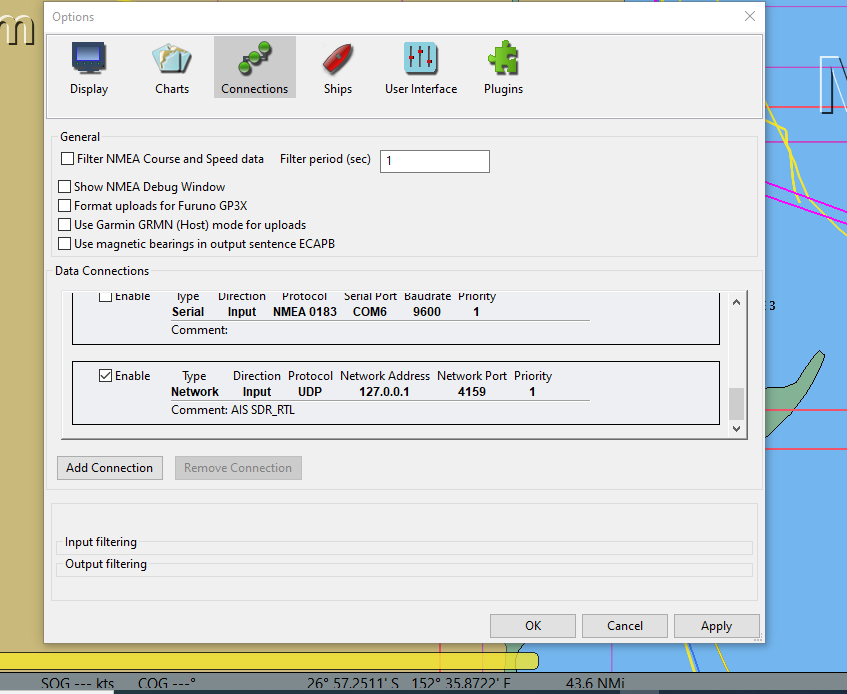 |
| OpenCPN, Options: Connection Page |
 |
| For a quick check data is being received into OpenCPN open an NMEA debug window in the connections tab, this should show data input and the vessel AIS positions should begin to be displayed on the OpenCPN chart. The first part of the input line is the network connection address, if your not getting information check the port number is correct. |
(SDR SHARP)SDR# Pre-requisites
If you do not intend to install SDR# your done.
The installation of SDR Sharp is really unnecessary if you choose to use SDRangel to decode your signals, and even if using AISdeco2 the signal can also be checked in SDRangel. The reason most people installed SRD Sharp previously was to check the received signals and if the PPM number entered to adjust the offset was correct.
In order to run SDR# software, you will need the .NET 5 Desktop x86 Runtime. This download is only required once, then Windows Update will maintain it automatically.
----------------------------------------
Other tips
First ensure that you have accurately determined your dongle’s PPM offset using SDRangel or SDR# or another program (unless you are using a TCXO dongle). Also use SDRangel to determine the optimum gain setting for maximum SNR. Once the PPM offset and optimum gain is known the two programs (aisdeco2 and SDRangel) can be adjusted to reflect the settings..
I found from my experimenting around I got more targets using SDRangel. Its a hard call as I had to switch between programs and it really depends on how many vessels are in range and what they are doing at the time, anchored or moored vessels can be very random with transmissions and may have thrown out the count however I am confident that SDRangel can decode more targets.
 |
| OpenPlotter set up on Raspberry Pi the AIS receiver is a NANO3 RTL-SDR |
 |
| RTL-SDR Nano3 dongle connected to a Raspberry Pi 3 USB port |
 |
| A compact Chartplotter setup using a Raspberry Pi 3B+ running OpenPlotter image. Lots of features including the RTL-SDR AIS receiver, temp, barometer, humidity, single wire external temp sensing, voltage monitor, 9 Dorf Gyro/accelerometer/compass, GPS, ship wide Wi-Fi access point and connected to the internet, and to simplify turning the unit off an automated shutdown. |


